
HIX Ticket Submission Instructions
We are excited to introduce ticket self-submission capabilities across all practices. Ticket self-submission will mean less steps for our practices - from ticket creation to resolution. Instead of having to call or email with your request, simply submit it from any HIX-managed computer in your office and the ticket will automatically populate into our ticketing system.
For issues/requests that affect a specific computer, please submit the ticket from that device. For “global” issues/requests that may affect the entire office, such as “need to upgrade our practice management software” or “printing problem from Dolphin on all PCs”, simply submit the ticket from any PC in the office (but please only submit one request).
Of course you can always still call us at 877.HIX.1998 or email us at intake@hix.biz if you’d prefer!

STEP 1
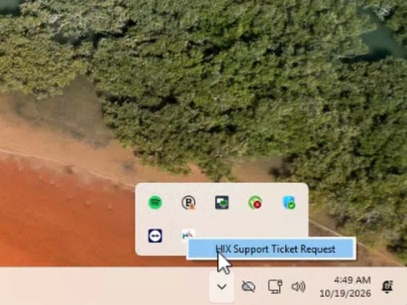
Press the ^ icon in your System Tray in the lower right corner to show all/hidden icons.
STEP 2
Click the HIX icon and click “HIX Support Ticket Request”
STEP 3
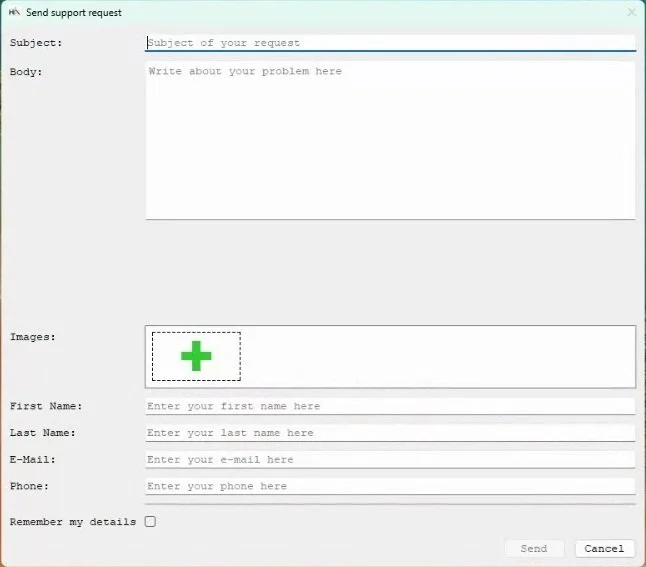
Complete all the fields as indicated. No need to specify the practice name or location, or computer name, as this pulls automatically.
If you’d prefer to be called on a different number than the main practice number, specify it.
Optional Screen Shot & Submission
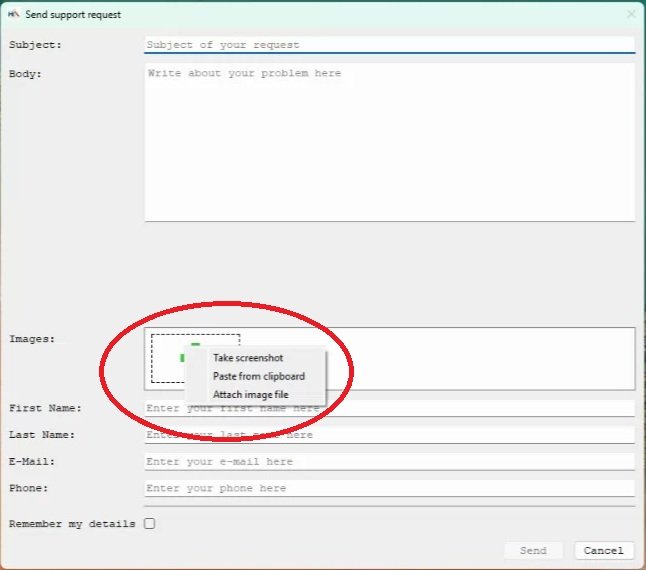
If you think a screen shot of the error message or other issue you’re experiencing would be helpful, click the icon and hit “Take screenshot.”
Hit “Send”. That’s it!